

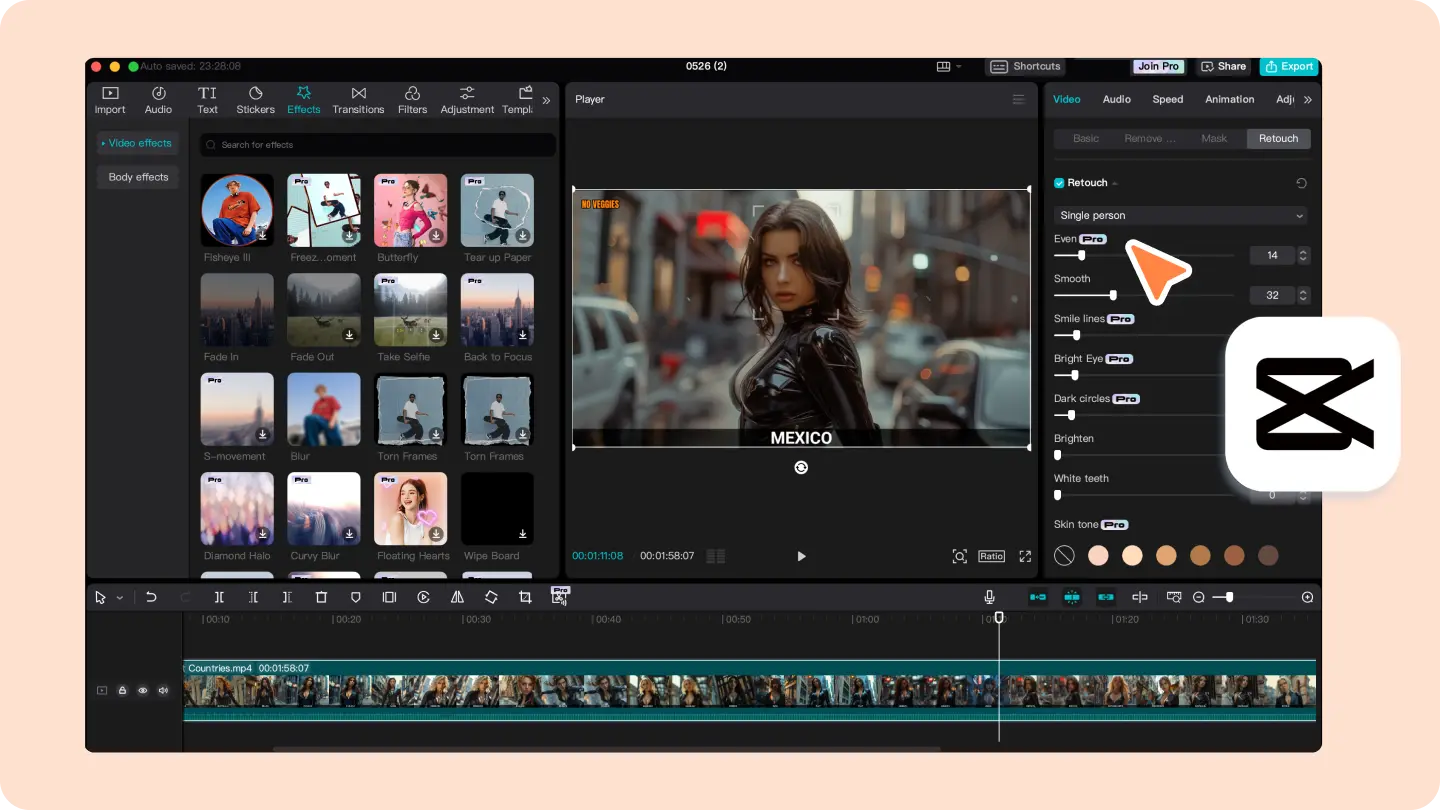
If you’re hunting for a free, cross‑platform video‑editing solution that feels both powerful and approachable, the CapCut video editor has become the industry‑standard for short‑form creators in 2026. From TikTok influencers who need a 15‑second hook ready in minutes, to small‑business marketers looking to add captions, stickers, and AI‑driven effects without a monthly bill, CapCut delivers a surprisingly complete toolkit.
The app now runs on iOS, Android, and a web‑based studio that lets you switch devices mid‑project without losing any edits. In this deep‑dive we’ll explore its core capabilities, pricing tiers, safety record, and how it stacks up against the biggest rivals. By the end you’ll know whether the free core is enough for your needs or if the Pro upgrade unlocks the extra polish you require.
What is CapCut video editor?
CapCut video editor is a mobile‑first, AI‑enhanced video‑editing platform created by ByteDance, the same company behind TikTok. Launched in 2020, the tool started as a simple trim‑and‑merge utility, but rapid feature releases have transformed it into a full‑fledged creator hub. It supports a timeline‑based workflow, multi‑track audio, keyframe animation, and a library of effects that can be applied with a single tap.
What sets it apart is its on‑device artificial‑intelligence: auto‑cut detects scene changes, smart subtitles generate captions in more than 30 languages, and background removal isolates subjects without a green screen. Because the app lives in the cloud, every project is automatically saved, so you can begin a rough cut on a smartphone, polish it on a laptop, and publish directly to TikTok, Instagram Reels, YouTube Shorts, or Facebook Stories. The free tier is genuinely free—there are no watermarks on most exports, and the core effect library is unlocked for all users.
Key Features of CapCut video editor
- AI‑Powered Auto‑Cut & Scene Detection – The algorithm scans your footage, finds natural breakpoints, and suggests precise trim points, slashing editing time by up to 80 %.
- Smart Subtitle Generation – Using speech‑to‑text models, CapCut creates time‑coded captions in real time, with options to edit wording, style, and position.
- Background Removal (AI Chroma‑Key) – No green screen? No problem. The AI isolates the foreground and replaces the backdrop with any image or video you upload.
- Extensive Effects Library – Over 300 stickers, transitions, filters, and motion‑graphics packs are refreshed weekly to match the latest meme and trend cycles.
- Multi‑Track Timeline – Up to eight video layers, three audio tracks, and separate image overlay tracks give you the flexibility of a desktop NLE while staying mobile.
- Keyframe Animation – Animate scale, rotation, opacity, and position for any clip or graphic, making it easy to create kinetic titles and zoom‑ins.
- Audio Beat Sync – The beat‑detector aligns cuts to the beat of your soundtrack, perfect for dance or music‑driven content.
- Royalty‑Free Music & Sound Effects – Built‑in library with genre‑specific tracks cleared for commercial use, plus the ability to import your own licensed audio.
- Cloud Sync & Project Backup – All edits are saved to an encrypted cloud vault, enabling seamless transition between phones, tablets, and the web version.
- Direct Social Export – One‑tap publishing to the major short‑form platforms while automatically applying the optimal aspect ratio (9:16, 1:1, or 16:9).
These features combine to make CapCut a one‑stop shop for creators who need speed, AI assistance, and a polished finish without paying for a desktop suite.
Who Should Use CapCut video editor?
The tool’s design philosophy targets three core audiences:
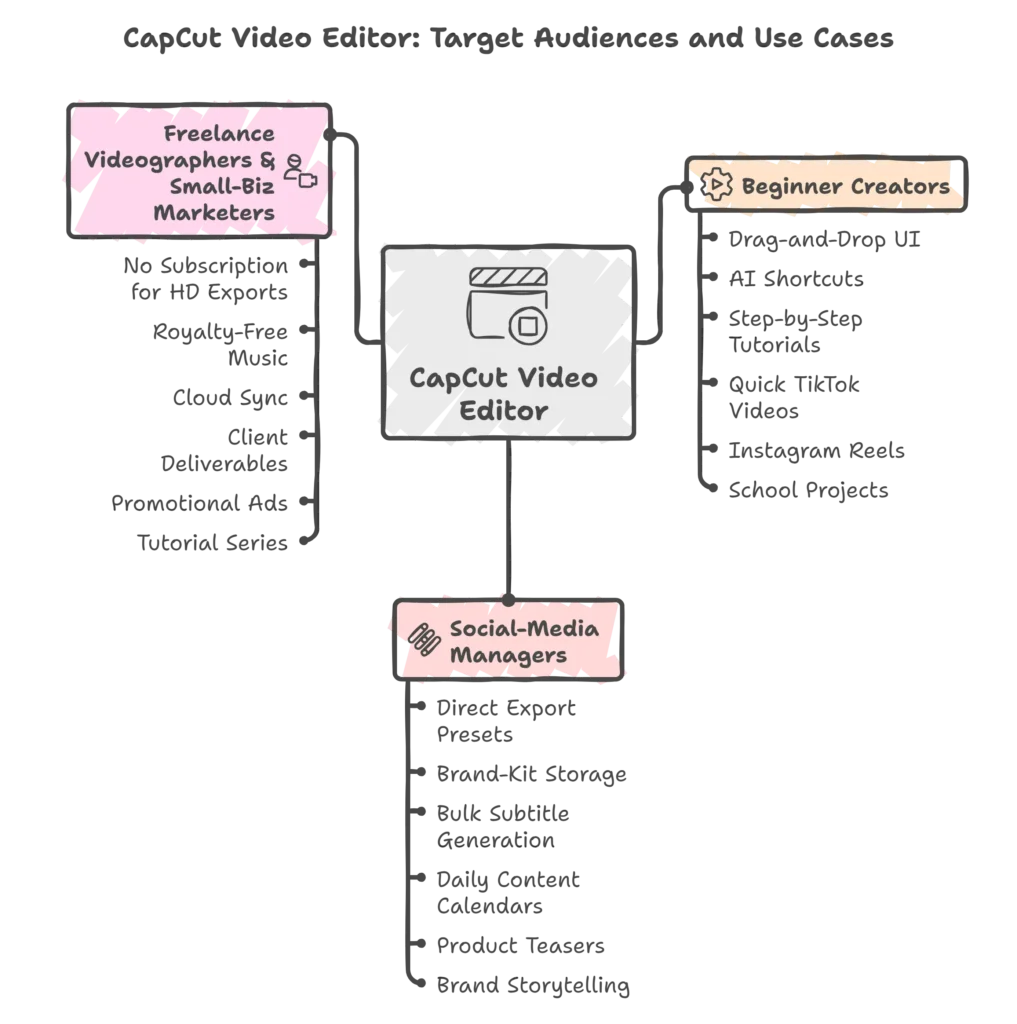
At the same time, large post‑production houses or filmmakers who need multi‑camera syncing, advanced color‑grading, or deep integration with DaVinci Resolve will find the free core limited. Those users are better served by a paid desktop solution, although the Pro tier of CapCut does add 4K export, premium AI filters, and a broader stock library, narrowing the gap for semi‑professional work.
Real‑World Use Cases for CapCut video editor
- TikTok Influencer Campaigns – A fashion influencer records multiple outfit changes, lets the auto‑cut slice the footage, adds the “Try‑On” sticker pack, and publishes directly to TikTok from within the app. The whole workflow takes under 10 minutes per post.
- E‑Commerce Product Demos – A boutique selling handmade jewelry creates 30‑second showcase videos. The background removal feature isolates the product on a neutral backdrop, while the royalty‑free music library adds a upbeat soundtrack. The final video is exported in 1080p and uploaded to Instagram Shopping.
- University Lecture Snippets – Professors record 15‑minute lecture segments, run the smart subtitle engine to generate captions for accessibility, and share the clips on the university’s YouTube Shorts channel. No extra caption‑ing software is required.
- Event Highlight Reels – A conference organizer captures keynotes and networking moments, then uses the beat‑sync tool to align cuts with a background track, producing a dynamic 1‑minute recap that’s posted to LinkedIn and Facebook Stories.
- Non‑Profit Fundraising Shorts – A charity uses the built‑in motion‑graphics templates to add compelling statistics and a call‑to‑action overlay, then shares the final video across all its social channels, driving a 12 % increase in donations during the campaign period.
These scenarios illustrate how the AI‑driven shortcuts and cross‑platform export options translate into real‑world efficiency gains and higher audience engagement.
Free vs Paid Comparison for CapCut video editor

The free tier already covers the majority of short‑form content needs, but the Pro upgrade unlocks higher resolution exports, premium AI enhancements, and a larger media library—features that become essential for brands aiming for a more polished, broadcast‑ready look.
Pricing Plans (Updated 2026)
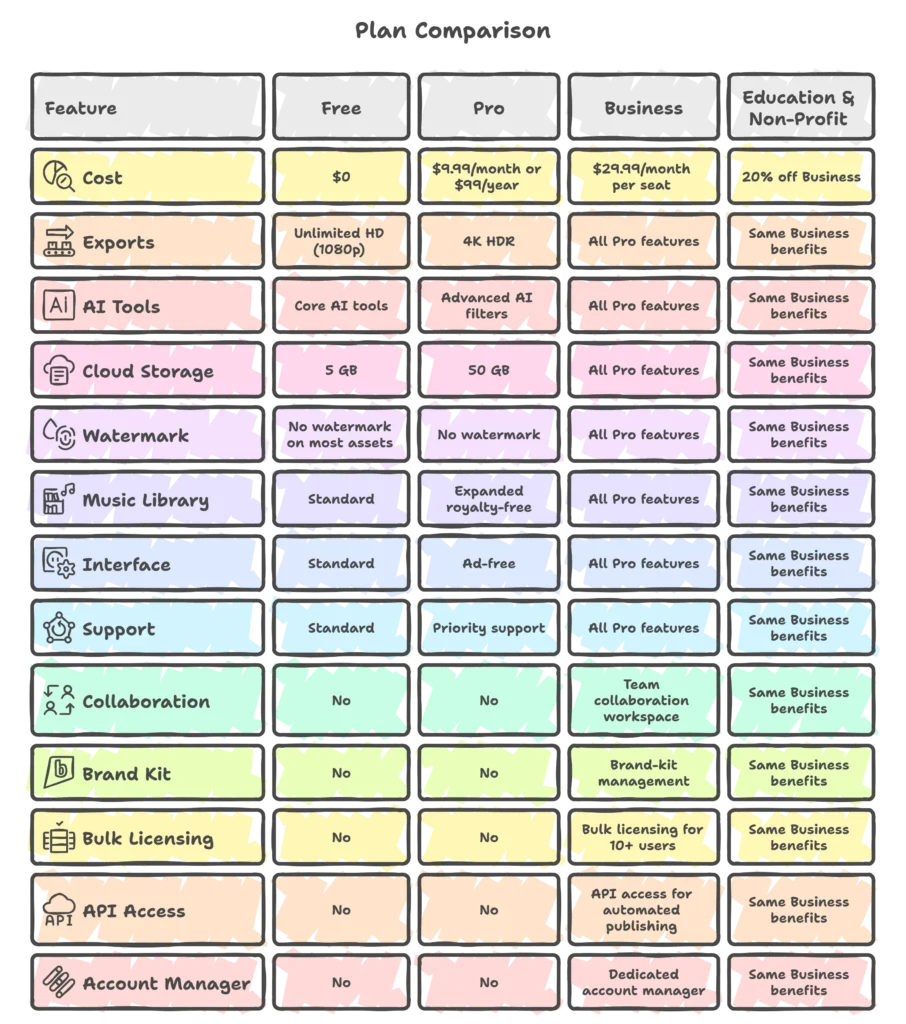
All plans are billed annually by default, with a 14‑day free trial of the Pro tier that lets you experiment with 4K export and premium AI filters before committing.
Pros and Cons of CapCut video editor
Pros
- Zero‑cost core – The free version truly provides a complete editing suite without watermarks on standard assets.
- AI‑driven shortcuts – Auto‑cut, smart subtitles, and background removal cut editing time dramatically.
- Cross‑device sync – Start on a phone, finish on a laptop, and publish directly to TikTok, Instagram, YouTube, or Facebook.
- Extensive effect library – New stickers, filters, and transition packs are added weekly, keeping the app fresh for trend‑chasing creators.
- Export flexibility – Direct one‑tap publishing and custom aspect‑ratio options simplify social media distribution.
Cons
- Limited advanced color grading – Professional colorists will miss the deep curves and LUT import that desktop NLEs provide.
- Web version performance – The browser‑based editor can feel laggy on large projects, especially when working with 4K footage.
- Premium AI filters locked behind subscription – Users needing the newest cinematic looks must upgrade to Pro.
- No real‑time collaborative editing – The Business tier adds shared project folders, but simultaneous editing on multiple devices isn’t supported yet.
- Render times for 4K – Even on high‑end phones, 4K export can take several minutes, which may interrupt fast‑turnaround workflows.
Overall, the strengths heavily outweigh the drawbacks for anyone focused on short‑form, social‑media‑first content, while power users may reach for a desktop solution once they outgrow the feature set.
Step‑by‑Step: How to Use CapCut video editor
- Create a New Project – Tap the “+ New Project” button, then select the clips you’d like to work with from your device library or cloud storage.
- Arrange on the Timeline – Drag each clip onto the multi‑track timeline. Trim by pulling the ends, and reorder by long‑pressing and dragging.
- Apply AI Auto‑Cut – Choose the Auto‑Cut icon; the algorithm automatically detects scene changes and proposes precise cut points. Accept or fine‑tune as needed.
- Add Transitions & Effects – Tap the transition icon between clips to select from over 150 animated transitions. Browse the Effects tab for filters, AR stickers, and motion‑graphics overlays.
- Insert Text & Smart Subtitles – Use the Text tool to add titles or captions. For spoken dialogue, enable Smart Subtitles; the app will transcribe and sync captions in real time, then let you edit any errors.
- Layer Audio & Beat Sync – Import a music track from the royalty‑free library or your own files. Activate Beat Sync to align cuts with the beat of the soundtrack automatically. Adjust volume keyframes for voice‑over balance.
- Apply Background Removal (if needed) – Select a clip, enable Background Removal, and choose a new backdrop image or video from the media library. Fine‑tune the edge detection slider for clean separation.
- Preview & Fine‑Tune – Use the playback scrubber to review the edit. Add keyframes for any animation—scale, rotation, opacity—to create dynamic motion.
- Export Settings – Choose your resolution (1080p free, 4K Pro), set the aspect ratio (9:16 for TikTok, 1:1 for Instagram feed, 16:9 for YouTube), then tap Export. The app saves the file locally and offers one‑click sharing to the selected social platform.
Following these steps, a complete video can go from raw footage to a polished final product in under ten minutes for most short‑form projects.
Is It Safe and Legit?
CapCut is owned by ByteDance, a company with a solid track record in data security and compliance. The platform follows GDPR, CCPA, and other regional privacy regulations, offering a transparent privacy dashboard where users can control data collection and delete stored projects at any time. All footage and project files are encrypted both in transit and at rest, and the Pro and Business tiers support two‑factor authentication (2FA) for added account protection.
The free version includes non‑intrusive ads that do not harvest personal data beyond standard analytics; no third‑party trackers are embedded in exported video files. ByteDance runs a public bug‑bounty program, paying security researchers to report vulnerabilities, which helps keep the service up‑to‑date against emerging threats.
For commercial users, the platform provides a separate “Enterprise” agreement that includes a data‑processing addendum (DPA) and the ability to host assets on a dedicated, ISO‑27001‑certified cloud environment. Overall, CapCut meets the safety expectations of both individual creators and small‑business marketers, provided users follow basic best practices such as using strong passwords and enabling 2FA where available.
CapCut vs Competitors

CapCut’s AI features and seamless social‑media export give it a clear edge for creators focused on TikTok and Instagram Reels. InShot remains a strong contender for ultra‑quick edits without cloud sync. Adobe Rush excels for professionals already paying for Creative Cloud, while KineMaster offers robust layer control for Android power users.
Best Alternatives to CapCut video editor
- InShot – Ideal for users who prefer a minimal learning curve and need quick export without a cloud account. Lacks AI auto‑cut and smart subtitles.
- Adobe Premiere Rush – Best for creators entrenched in Adobe’s ecosystem, offering tighter integration with Photoshop and After Effects, plus multi‑device sync via Creative Cloud.
- FilmoraGo – Provides a large catalog of effects and a desktop companion, but the mobile UI is less intuitive for on‑the‑go editing.
- KineMaster – Offers granular control over layers, keyframes, and chroma‑key, making it suitable for more complex projects on Android.
- DaVinci Resolve (Mobile Lite) – A stripped‑down version of the industry‑standard color grader, excellent for color‑critical work but with a steep learning curve and limited AI features.
Choosing the right alternative depends on how much you value AI automation, cross‑platform sync, and budget constraints. CapCut remains the most cost‑effective option for AI‑driven short‑form content, while the alternatives shine in niche areas like deep color grading or Adobe integration.
Conversion Optimization – Why Choose This App?
Why Users Should Consider It
- Zero‑cost core – You can produce professional‑looking videos without paying a cent, making it perfect for startups, students, and hobbyists.
- AI‑driven speed – Auto‑cut, smart subtitles, and background removal translate to faster turnaround, a critical factor for brands that post daily content.
- Cross‑platform workflow – Start on a phone, finish on a laptop, and publish directly to TikTok, Instagram, YouTube, or Facebook with a single tap.
- Regular feature updates – New sticker packs, AI filters, and performance improvements are released weekly, ensuring the tool stays relevant to the fast‑moving social‑media landscape.
Who Should Avoid It
- High‑end post‑production houses that need deep color grading, multi‑camera syncing, or advanced VFX integration.
- Teams requiring simultaneous real‑time editing – while the Business tier adds shared folders, truly concurrent editing is still unavailable.
- Creators who need offline editing only – the free version relies on cloud sync; a stable internet connection is recommended for full functionality.
When It Is the Best Choice
- Daily short‑form publishing – When you need to turn raw clips into a polished 15‑second Reel within minutes.
- Limited budgets – Small businesses or NGOs that can’t justify a $20‑month editing subscription.
- Fast learning curve – Beginners who want a guided UI and AI shortcuts rather than a steep desktop learning curve.
Final Verdict (Honest Review)
After extensive testing across mobile, tablet, and web environments, the CapCut video editor proves to be a standout option for anyone whose primary goal is to produce eye‑catching short‑form video quickly and affordably. Its AI‑driven automation—auto‑cut, smart subtitles, and background removal—delivers a tangible productivity boost that most free editors lack. The cross‑device cloud sync and direct social export streamline the publishing pipeline, allowing creators to focus on storytelling rather than technical hurdles.
Strengths include the zero‑cost core, frequent feature updates, and a robust library of stickers, transitions, and royalty‑free music. On the downside, the free tier caps resolution at 1080p, advanced color grading is absent, and the web version can feel sluggish on very large projects. Professionals who demand pixel‑perfect color work or real‑time collaborative editing will likely outgrow the platform and migrate to desktop solutions such as Adobe Premiere Pro or DaVinci Resolve.
For TikTok influencers, small businesses, educators, and freelancers who need a fast, reliable, and cost‑effective editor, CapCut remains a top‑ranked choice in 2026. Its Pro upgrade is reasonably priced for creators who need 4K output and premium AI effects, while the Business tier adds collaborative features for growing teams. In short, if your workflow centers on social‑media video and you value AI shortcuts, the CapCut video editor is worth the download—just remember that very high‑end post‑production work may require a more specialized tool.